
This will be an ongoing report of my attempts to setup a Yaesu FTDX-3000 transceiver for remote operation. The goal is to get it working for CW, Digital, and Phone operating. It will be a trial-and-error activity, so if you are interested, please check back periodically for updates. Please Note – the methods demonstrated in this post should work for other Yaesu radios but the newer radios (FTDX-10 and FTDX-101) now have some network connection and remote-access functions built-in, so there should be an easier way.
After struggling with remote rig access for several years. I have recently been experimenting with some relatively easy approaches to Remote HF operating. The software and networking tools for remote operating have come a long way in the past 5 years. I have access to two operating locations. One has much more room for HF antennas than the other. My current approach for accessing my station remotely is to use Nomachine! remote desktop software to access apps that are running on a local PC at the “Station” end from any Internet-connected location (the “Remote”end).
Getting remote operating setup for Digital modes is the easiest of all, mainly because there is no audio involved (there is no need to listen the the FT8 audio for operating FT8 Mode. You just setup the remote desktop software and run WSJT-X software on the rig at the Station end.
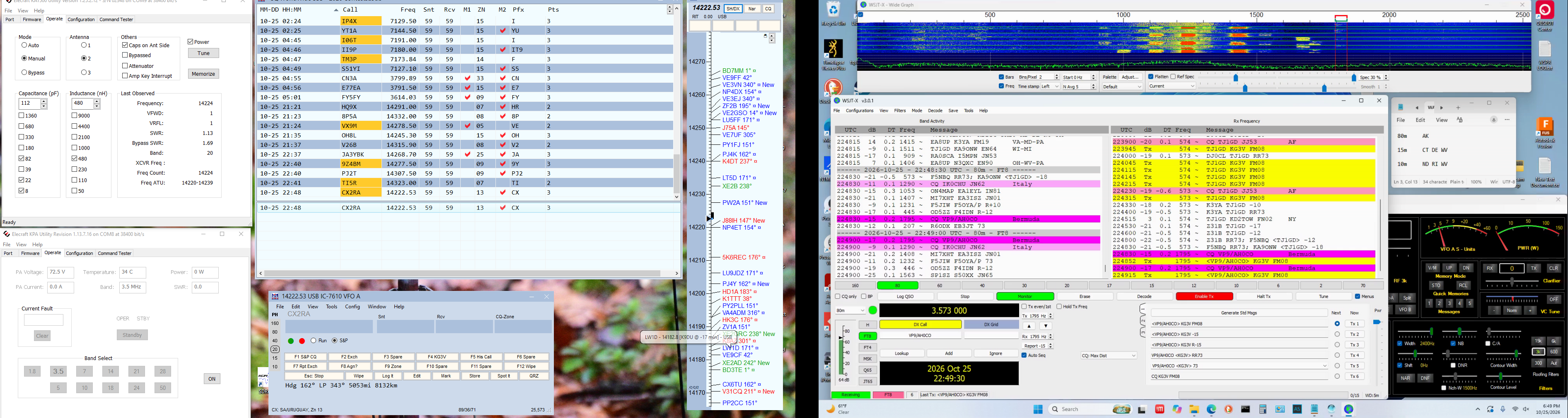
Rig Control for Remote Operation
One issue I encountered early in the HF-Remote adventure was the need for control of the Rig from the remote location. You can run a single program successfully without providing access to the many rig control and menu capabilities, but that is less than ideal. If I am running WSJT-X for digital or N1MM for contesting, I really need to have access to rig control functions. For me, it is not optional to be able to change the Power Output, AF and RF gain, and to change antennas or activate the built-in tuner in my radio. Fortunately, I have found a very easy way to do this.
My desire was to run a rig-control program remotely, so I could access every rig function and menu setting from the remote end. But I always need to run some other app (WSJT-X, N1MM, etc.) when operating. With some rig control programs, you have to shut down any other app that is accessing the rig’s CAT control port, startup the rig-control software and make you configuration changes, shut down the rig-control program, and restart the operating app. I tried that for a (very short) while. No thanks!
Rig Control Using WIN4YAESU Software
I have looked at various remote rig-control software in recent years. There are several programs available that can be run on a PC to control any modern radio. I tried the Yaesu RS-BA1 software. it is very difficult to setup but once it is working, it does a decent job. However, it is just lacking in capabilities for me. One example, it totally ignores Digital mode operation. The documents simply state that the DATA modes of the radio are disabled during program use. I hope they fix that, but that rules it our for anyone that wants 3-Mode (CW, Digital, and Phone) remote access to their radio.
I recently downloaded the WIN4YAESU software app to try it for my rig control needs. One nice feature of this program (and the sibling programs for radios by other manufacturers) is that you get a full-function free trial for 30 days. That seemed like more than enough time for me to see if it is usable for my remote operation. I have tried the WIN4ICOM program in the past and was impressed with it’s capabilities.
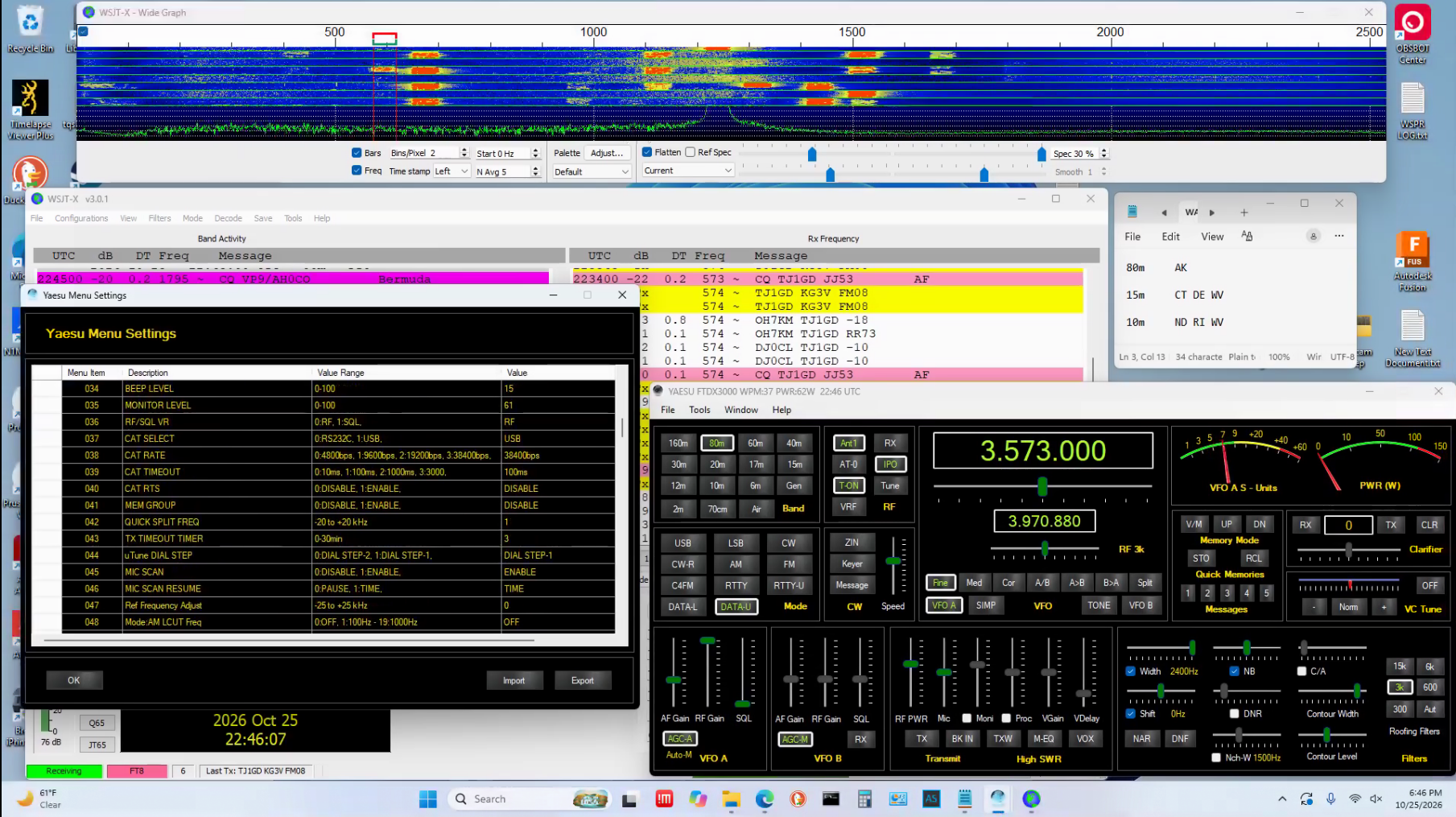
Running Multiple Rig-Access Programs Simultaneously
Since the FTDX-3000 and most other radios only have one CAT port for connecting the radio to the PC, you can basically run only one CAT-capable app at a time. I have seen approaches that use “virtual COM ports” to allow CAT access by multiple apps, but that setup has always appeared to be very difficult and I just was skeptical of how well that would work.
The WIN4xxxxx software suite has embraced virtual COM ports and now provides a simple and reliable way to run multiple programs that need to access the CAT port “simultaneously.” Of course the commands from the apps are kept separate so there are no collisions or interference. The well-known COM0COM software is used to create the virtual COM ports. Very easy directions and integrated configuration functionality make it simple to setup for running multiple CAT-enabled apps simultaneously.
Using the COM0COM virtual ports, I now keep WIN4YAESU running on the Station PC full-time, while also running the desired apps for the mode I am using (WSJT-X, N1MM, etc.). This gives me access to EVERY function, knob, and menu setting on the FTDX-3000 at any time while operating remotely.
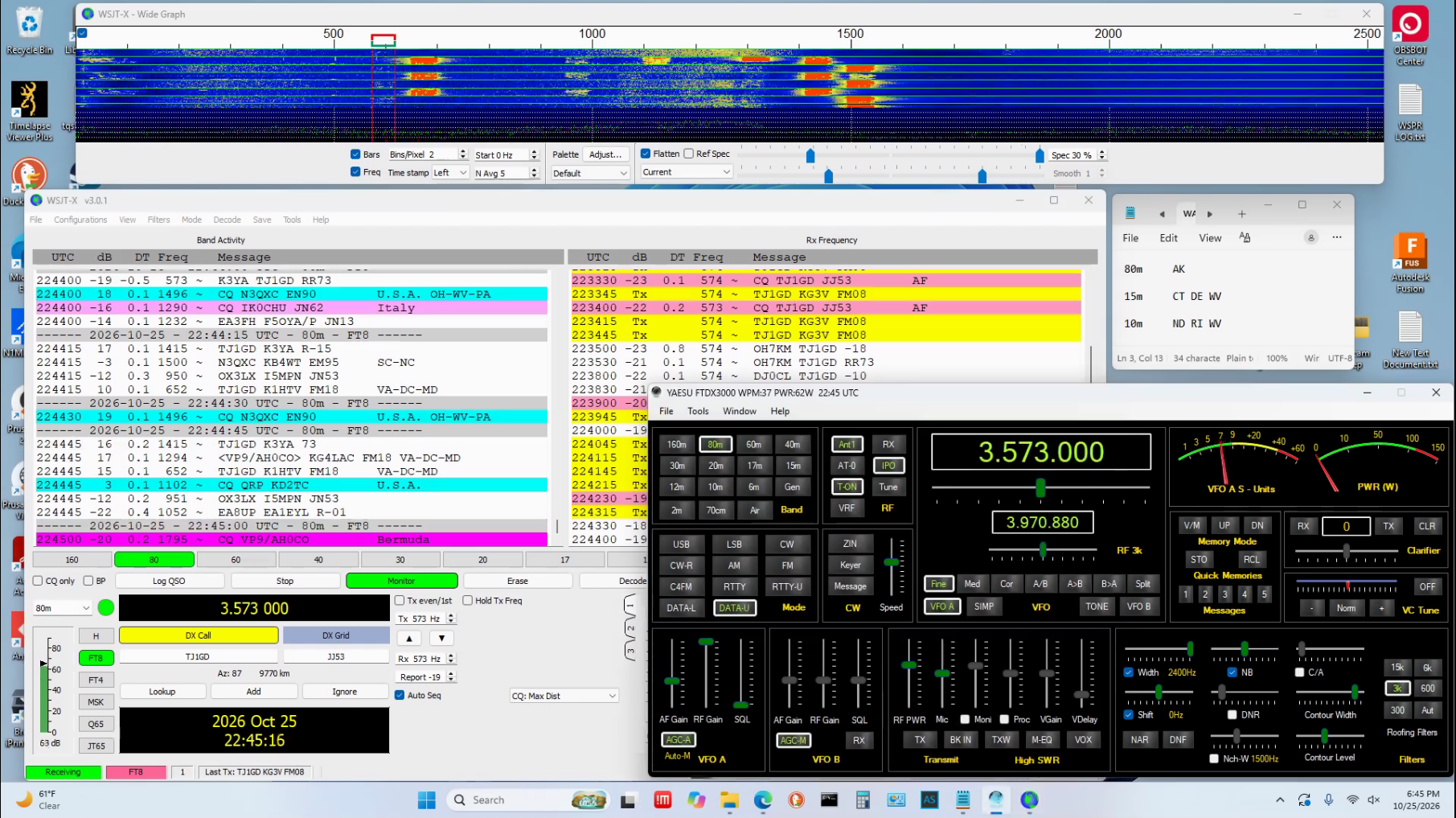
As this figure shows, I can run FT8 and pop-up the WIN4YAESU program to set or review any rig functions.
Audio for Remote Operation
If you want to operate remote CW or Phone modes, you will have to route audio between the Station and Remote locations. For Phone you must have audio in both directions and for CW it is preferable to have audio in both directions to allow you to hear the CW sidetone as you are sending the CW. The combination of Nomachine! and WIN4Yaesu makes this all fairly easy to do. Please note that CW capability is provided only as keyboard-typed characters, with no ability to hand-key using paddles or keyers at the remote end.
Nomachine “forwards” audio (once the settings are configured) between the two PCs at the Local and Remote operating locations. So once it is configured, you can use a microphone to send audio to the remote radio, and you can listen to the remote receiver or CW sidetone.
Audio output from the FTDX-3000 radio must be routed to the PC at the Station end, so it can then be forwarded to the operator at the Remote end. In my case, I simply obtained a small “external sound card adapter” which I use to drive some local speakers. It is then easy to select that sound source to send the rig’s audio to the Remote end.
Configuring the audio adapter
The sound adapter I selected can be found here. There are many other options, at lower cost, for external sound cards. I chose this one because it provides flexibility that I can use for other purposes, and it it housed in a nice metal chassis. Setting up this adapter was very easy. I just connected the radio’s Phones output to the “line input” of the adapter, and connected the USB cable. The new device immediately showed-up as an audio output selection for sound.
There is one step that is needed to get the audio routing working as desired. You must go into the SOUND configuration utility and select “listen to this device.” That routes the LINE Input audio to the output device “speakers”. Once this step is done, the radio audio is available for forwarding to the Remote end. What you hear on the external speakers will be sent to the Remote end.


Leave a Reply